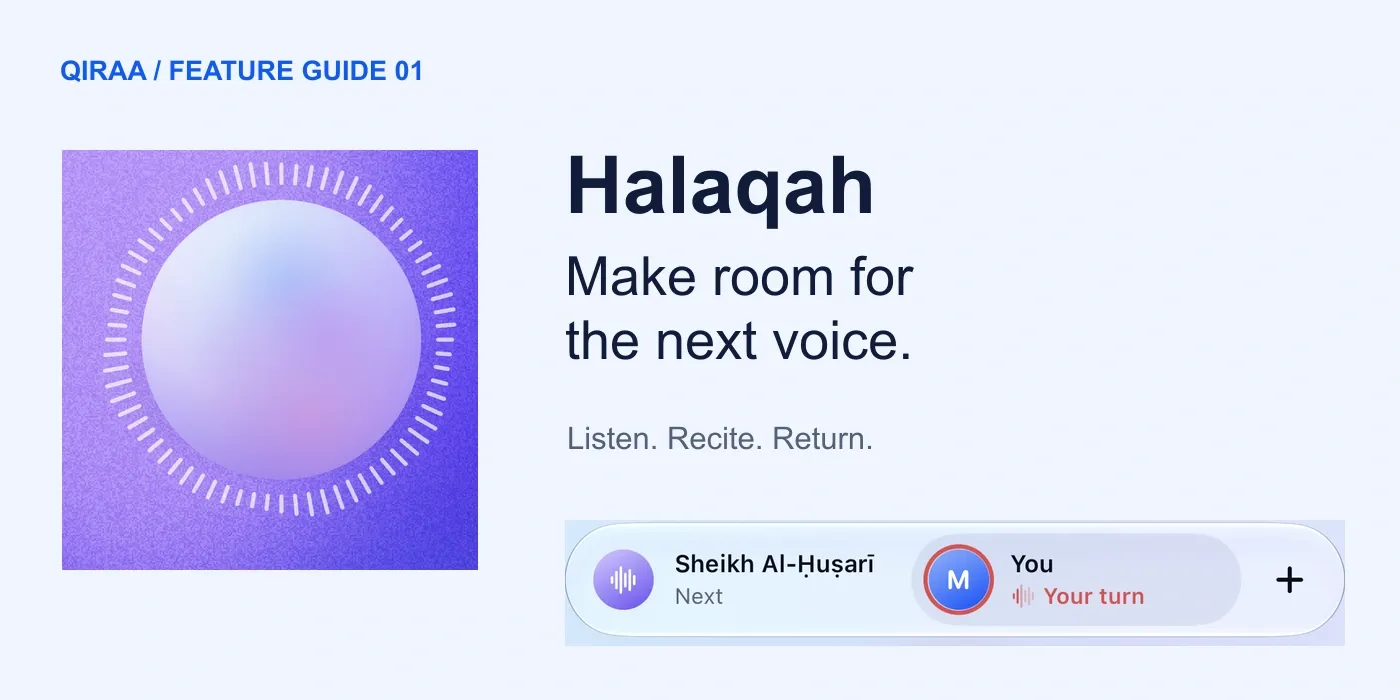
A place to recite together
A good recitation session has a rhythm: someone reads, someone listens, and the next voice knows when to begin. Halaqah gives that rhythm a place in Qiraa. You choose the passage and the people, and Qiraa keeps track of whose turn it is, where you are in the Qur’an, and what deserves another go.
You can sit down on your own with a recorded qāriʾ, or add people beside you to the same device. Start with the words visible when you want to read. Hide them when you want to practise recall. The same passage can support both kinds of work.
This guide follows the iPhone interface, with Sheikh Al-Ḥuṣarī as the qāriʾ in the examples. The steps below take you from your first sitting to a focused review.
Choose a passage
1. Give the sitting a clear beginning and end
Open the Halaqah tab and tap Start a halaqah. Before you begin reciting, tap the passage name at the top to open Choose a portion. There are three ways to find your place:
- Sūrah: choose a sūrah, then keep the whole selection or narrow it to a run of āyāt. Tap an āyah and then another to set the range, or drag across several.
- Juzʼ: choose a juzʼ and check its preview. In the example, Juzʼ 30 runs from An-Naba to An-Nas, across pages 582–604.
- Page: choose a page when your practice is organised around a familiar place in the muṣḥaf.

Left: select a sūrah and its āyah range. Right: check the scope of a juzʼ before confirming.
Tap the blue Choose… button to confirm. The heading in the sitting updates to show the passage you selected. For a first attempt, Al-Fatihah or a short range you already know gives you room to learn the controls without taking on a long recitation.
Share the turns
2. Decide how the recitation moves around the circle
The three options above the people’s names decide who recites the next part. Read the assignments beneath each name before tapping Begin.
Āyah each: pass the next āyah to the next voice
Each person takes an āyah in turn. With the qāriʾ first and you second, Al-Fatihah is divided between you: he recites āyāt 1, 3, 5 and 7; you recite 2, 4 and 6. Listen to his āyah, then continue with yours. If you want to practise every āyah yourself, use another pass with a different starting order.
Page each: stay with a longer stretch
The turn changes with the page. This suits a passage you want to recite with more continuity. In the Juzʼ 30 example, the qāriʾ has 12 pages and you have 11. Qiraa can still follow the words and āyāt within a person’s page.
Together: give the people one shared turn
The people in the circle recite as a group. If the qāriʾ is included, he keeps his own turns and the group takes the human turns together. This can be useful when someone beside you needs the confidence of another voice.

These are two separate setups. The labels beneath each participant show their share before Begin.
Add someone
3. Make room for someone beside you
Tap + beside the participants to open Add someone. Enter their name, choose their colour, and tap Add. Halaqah supports you, up to two other people, and the qāriʾ: four places in all, on the same device.
You can add someone after a sitting has started. The sheet tells you they will join after the current āyah, so the person reciting can finish. Tap a participant to find the available turn controls, including Recite next, Skip this turn, and Earlier or Later in the order.

The new participant joins after the current āyah. Everyone uses the same device.
For a family sitting, agree on the passage and the order first. Give each person the amount of text support they need; a learner reading from the screen and another reciting from memory can share the same circle.
Begin reciting
4. Follow the voice, then take your turn
Tap Begin. The participant strip tells you what is happening: Reciting identifies the qāriʾ’s turn, Your turn asks you to recite, and Next shows who follows. The active āyah or word is highlighted in the reading area.
When it is your turn, recite aloud and allow microphone access when Qiraa asks. The app follows your recitation and handles the handover. You do not need to tap a next button for every āyah.

The active participant and the centre action change as the sitting moves between listening and reciting.
- Pause / Resume: stop the sitting when you need a moment, then carry on.
- Again: restart the current human recitation attempt when the control is available.
- Let Sheikh Al-Ḥuṣarī recite it: ask to hear the current āyah and let the sitting continue. The wording follows your selected qāriʾ.
- Settings: adjust the turn pattern, word visibility, response to slips, or qāriʾ pace.
A control may be dimmed when it does not apply to the current turn. Watch the participant strip as well as the large centre button: one tells you whose turn it is, while the other offers the action available now.
Read or recall
5. Choose how much of the text you want to see
Open Settings → Words to choose Shown or Hidden for each participant. You might leave the qāriʾ’s words visible so you can follow his recitation, then hide your own to practise remembering the next āyah.
With words hidden, Qiraa reveals the words it follows as they are recited. The page can retain its āyah markers and spacing, so you still have a sense of where you are. The Hide / Show control also lets you change the text visibility during the sitting.

Word visibility can differ by participant. With words hidden, use a word or āyah hint when you need one.
If you get stuck, use Peek word for the next word, or Āyah to reveal the current āyah. A peek is recorded as help used and gives you a place to revisit. Take the hint you need, finish the phrase, then return to it without the hint on another attempt.
Choose a view
6. Put the right amount of Qur’an in front of you
Tap the reading-layout icon at the top right to open Cards. This choice changes the presentation of the text. The turn pattern you chose earlier still decides who recites.
- Single card: keep the portion together on one scrolling surface, with the current āyah brought into focus.
- One āyah at a time: use a focused card view to give the current passage more space. Consecutive āyāt assigned to the same speaker can appear together.
- Merge āyāt: join neighbouring āyāt into a longer practice card; the + Āyah… control lets you extend it where available.
- Page: keep the familiar printed muṣḥaf arrangement and page number.

Reading layouts change the amount of text in view. They do not choose the turn order.
Try the focused view when a short āyah needs close attention. Choose Page when its position on the page helps you find your way. Change the view to suit the work you are doing in that moment.
Adjust the support
7. Decide what should happen when you slip
In Halaqah settings, If someone slips offers three approaches. For a sitting with you and the qāriʾ, they work like this:
- Gentle: the qāriʾ reads the correction and the sitting continues.
- Coach: Qiraa offers more attempts. If the āyah still needs work after the retries, the qāriʾ recites it and the sitting moves on.
- Strict: Qiraa asks for another attempt and stops at that point if the retries are used up.
When one person hands straight to another in Gentle or Coach, Qiraa can check the completed turn while the next person recites. A slip can therefore appear in the review without interrupting the next voice. Strict waits for the check before moving on.

Gentle keeps a supported sitting moving; Coach offers retries; Strict can stop at an unresolved āyah.
Use Qāriʾ pace to choose 1× or 0.75×. The slower option gives you more time to listen to the recorded recitation. A manageable passage, a comfortable pace, and the right level of help make a better starting point than the most demanding combination of settings.
If Qiraa cannot judge an attempt clearly, it does not count that uncertainty as a confirmed mistake. Pay attention to what the app says it heard, and use another attempt when you need a clearer result.
Use the tools
8. Add a tool when you have a reason to use it
The four-square button at the top right opens the tools menu. Start with the one that answers your current question.
- Timer: see the time spent in this sitting against your daily goal, or start a focus countdown. The example shows a 25-minute focus option; you do not need to fill that whole block to benefit from a short sitting.
- Repeat: keep count of passes through an āyah against a target. A count helps organise practice; the next attempt from memory tells you what has stayed.
- Look-alikes: compare similar phrases and pay attention to where their wording separates.
- Test me: open a dedicated recitation test from memory. Qiraa follows and checks what you recite.

Timer and Repeat support the sitting. The menu shows Mistakes and Voice compare in its Premium group.
The menu also groups Mistakes and Voice compare under Premium. A lock shows when access is needed. Mistakes gathers places that need attention in the sitting. Voice compare shows word timing from your recitation alongside the qāriʾ’s when timing data is available, helping you notice differences in pace and how long a word was held.
Pause before opening a separate test or listening back. Give the next activity your attention, then return to the circle when you are ready.
Review the slips
9. Leave with a smaller, clearer next practice
The useful part of a review is the place it sends you back to. Open Review from the result summary to inspect the marked āyāt. A word-level entry can show the expected wording, what Qiraa heard under You said, and a Qāriʾ button for listening to the reference recitation.

Details from the example sitting: open Review, inspect the wording, then use Practise the 3 to return to flagged material.
In the example, the review lists three wrong-word entries and offers Practise the 3. Use that action to return to the flagged material. Listen to the correct phrase, recite it with the words visible if needed, then try it again from memory. Finally, place it back between the neighbouring āyāt so you practise the transition as well as the word.
Read any percentage alongside its detailed entries: it describes that checked attempt, while the marked words tell you what to do next. A place where you needed a peek is also useful practice material, even when you finished the āyah afterwards.
If you need to leave before finishing, tap the close button and choose Keep it for later. Qiraa keeps the sitting so you can continue from your place. Choose End here when you want to finish the sitting at that point.